
Setting Up 3PA Inventory Sync
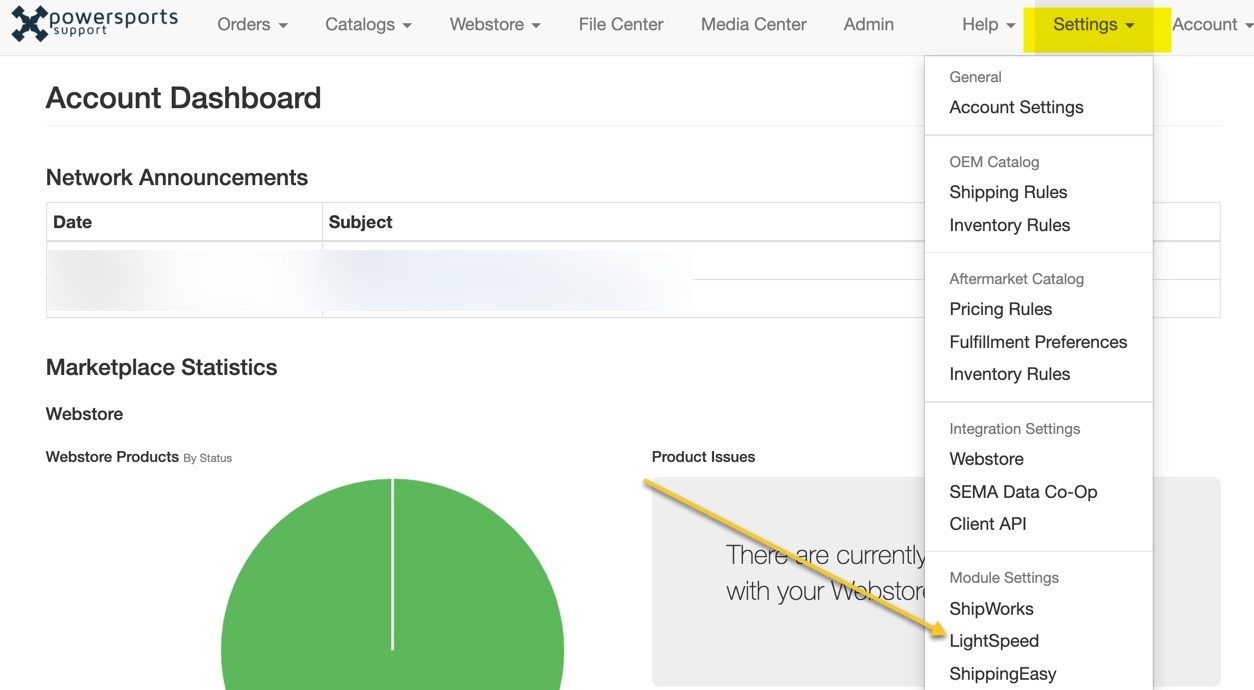
Setting Up 3PA / Data Warehouse
The 3PA (Third-Party Access) module allows Ecommerce to pull your parts inventory data from Lightspeed's data warehouse.
Configuration Steps
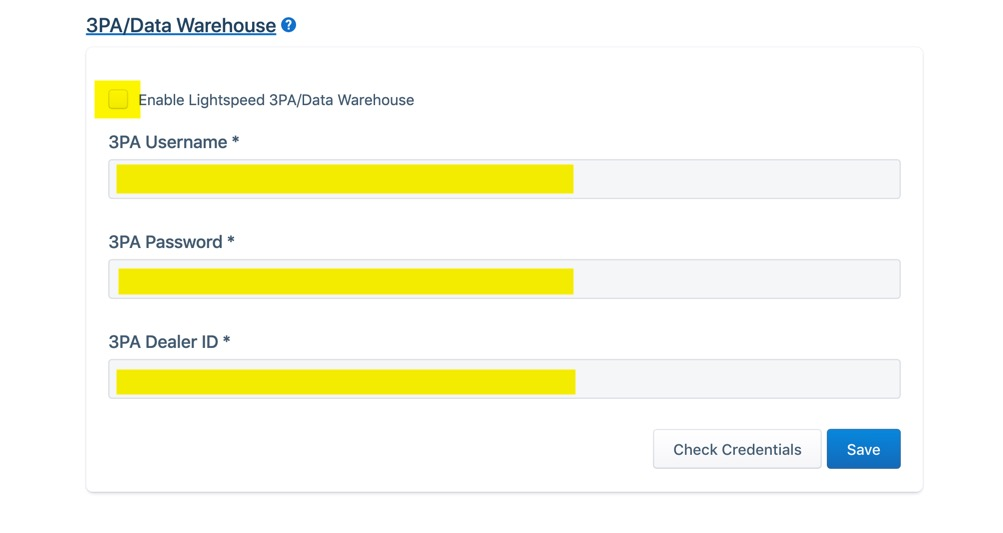
- On the LightSpeed Configuration page, find the 3PA/Data Warehouse section
- Check Enable Lightspeed 3PA/Data Warehouse
- Enter your 3PA Username
- Enter your 3PA Password
- Enter your 3PA Dealer ID
- Click Save
Note: Some organizations have pre-configured credentials. If the username and password fields are not shown, your organization's credentials are already set up. You only need to enter your Dealer ID.
Verifying Your Credentials
After entering your credentials, Ecommerce will attempt to validate the connection to Lightspeed. If validation fails, you'll see an error message. Double-check your credentials with your Lightspeed account representative.
Configuring Supplier Codes
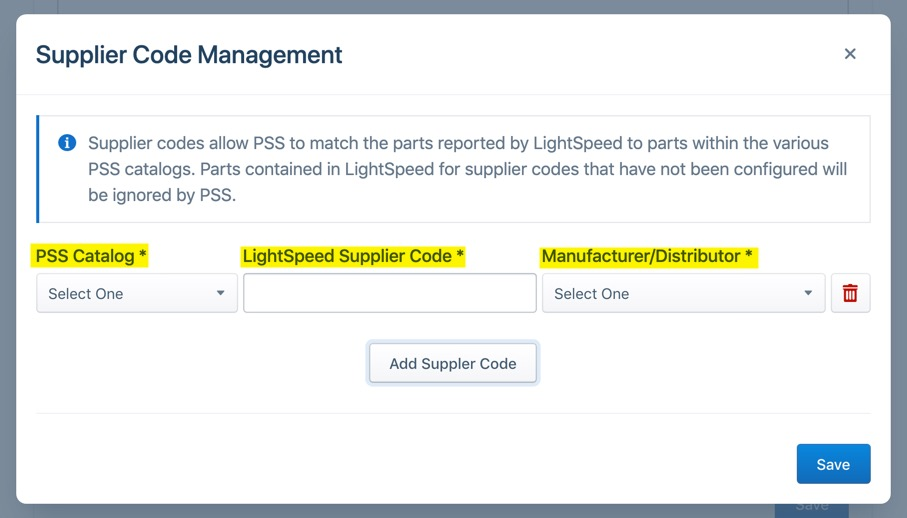
Supplier codes are the critical link between your Lightspeed inventory and Ecommerce product catalogs. Without supplier codes configured, Ecommerce cannot match your Lightspeed parts to products on your webstore.
What Are Supplier Codes?
In Lightspeed, every part is associated with a supplier code — a short abbreviation that identifies the vendor or supplier (e.g., "TR" for Tucker Rocky, "WPS" for Western Power Sports, "KA" for Kawasaki). Ecommerce needs to know how to map these codes to its own catalog system.
How to Get There
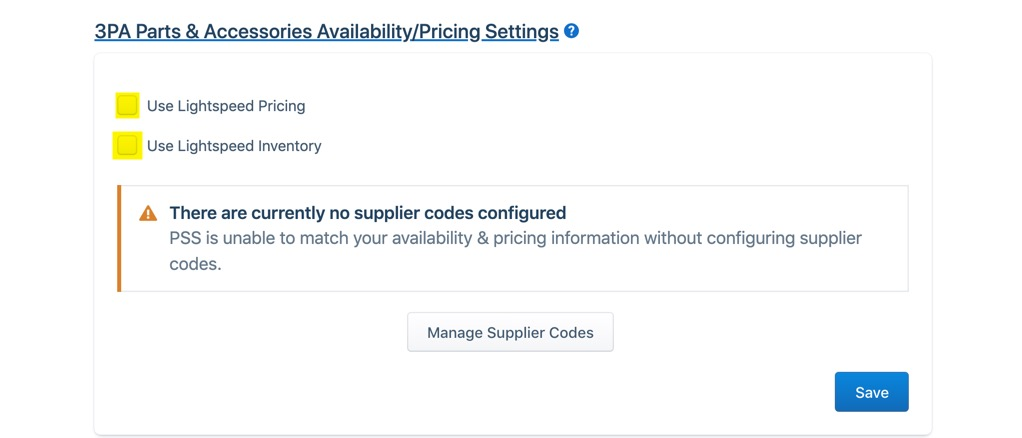
- On the LightSpeed Configuration page, scroll to the 3PA Parts & Accessories Availability/Pricing Settings section
- Click the Manage Supplier Codes button
Adding a Supplier Code
In the Supplier Code Management dialog:
- Click Add Supplier Code
- Fill in each field:
| Field | Description | Example |
|---|---|---|
| Ecommerce Catalog | Which Ecommerce product catalog this supplier maps to | Aftermarket, OEM, or Private Label |
| LightSpeed Supplier Code | The supplier code as it appears in Lightspeed | "TR", "WPS", "KA" |
| Manufacturer/Distributor | The specific manufacturer or distributor in Ecommerce that this code maps to | Tucker Rocky, Western Power Sports, Kawasaki |
| Lead Time Value | Default number of days for fulfillment (optional, defaults to 1) | 1, 3, 5 |
| LightSpeed Pricing | Whether to import pricing from Lightspeed (see below) | Disabled, Retail, or Current Active |
- Repeat for each supplier code you want to sync
- Click Save
Understanding the Catalog Types
| Catalog | What It Contains | How Parts Are Matched |
|---|---|---|
| Aftermarket | Parts from aftermarket distributors (Tucker Rocky, WPS, etc.) | Matched by distributor abbreviation + part number |
| OEM | Original equipment manufacturer parts (Kawasaki, Honda, etc.) | Matched by manufacturer part number + OEM manufacturer ID |
| Private Label | Your own branded or custom products | Matched by part number/SKU |
Pricing Options
Each supplier code can optionally import pricing from Lightspeed:
| Option | What It Does |
|---|---|
| Disabled | No pricing is imported — only quantities are synced |
| Retail | Imports the Retail price from Lightspeed as the sale price |
| Current Active | Imports the Current Active Price from Lightspeed as the sale price |
Important Notes About Supplier Codes
- Every Lightspeed supplier code that you want to sync must be configured. Parts associated with supplier codes that are not mapped will be ignored during inventory sync.
- You can map the same Lightspeed supplier code to different catalogs if needed (e.g., if a supplier code covers both aftermarket and OEM parts)
- If you remove all supplier codes, the "Use Lightspeed Inventory" indicator will show as unchecked and the inventory sync will have nothing to process
- The alert banner "There are currently no supplier codes configured" will appear until you add at least one
Parts & Accessories Inventory Settings
These settings control how the automated inventory sync behaves.
Quantity Column
Setting: Quantity Column (On Hand vs. Available)
| Option | Description |
|---|---|
| On Hand | Uses the total physical count of parts in Lightspeed. This includes all units regardless of reservations or commitments. |
| Available | Uses the available quantity, which may exclude units reserved for open work orders, layaways, or other commitments. |
Choose the option that best reflects how your dealership manages inventory in Lightspeed. This varies from dealer to dealer.
Clear Previous Quantities
Setting: Clear Previous Quantities (checkbox)
When enabled, Ecommerce clears all existing shelf quantities for each manufacturer before applying the new quantities from Lightspeed. This ensures your webstore inventory exactly matches what Lightspeed reports.
- Enabled: Every sync starts fresh. If a part is no longer reported by Lightspeed, its shelf quantity goes to zero.
- Disabled: Quantities are updated but never cleared. Parts that were previously in stock but no longer reported by Lightspeed will retain their old quantities.
Recommendation: Enable this setting for the most accurate inventory representation.
Disabled Days
Setting: Disabled On (multi-select)
Select specific days of the week when inventory should NOT be pulled from Lightspeed. This is useful if your dealership performs inventory counts or maintenance on certain days and you don't want those incomplete counts reflected on the webstore.
For example, if you do a physical inventory count every Sunday, you might disable Sunday to prevent the sync from pulling mid-count data.
How Inventory Sync Works
The Flow
Scheduled job runs (every 6 hours, starting at 1:00 AM)
        ↓
Check: Is today a disabled day? → If yes, skip
        ↓
For each configured supplier code:
        ↓
    Connect to Lightspeed 3PA API
        ↓
    Fetch all parts for this supplier code
    (updated within last 365 days, quantity > 0)
        ↓
    Optionally clear previous shelf quantities
        ↓
    For each part returned:
        ↓
        Match to Ecommerce product using catalog + part number
        ↓
        Update dealer inventory (quantity + optional pricing)
        ↓
    Reindex affected webstore products
        ↓
Generate inventory report (CSV)
Key Details
- The sync runs automatically every 6 hours between 1:00 AM and 7:00 AM
- Only parts updated in the last 365 days and with quantity greater than zero are fetched
- Parts are fetched in batches of 500 to respect API rate limits (200 requests per minute)
- If a part from Lightspeed cannot be matched to a Ecommerce product, it is skipped
- A CSV report of all synced inventory is generated and stored for each run
- If the sync encounters an error for one supplier code, it logs the error and continues with the next supplier code — a single failure does not stop the entire sync
What Gets Updated
| Data | Updated? |
|---|---|
| Shelf quantity (On Hand or Available) | Yes — always |
| Sale price (Retail or Current Active) | Only if pricing is enabled for the supplier code |
| Lead time | Yes — uses the lead time value configured on the supplier code |
| Webstore product index | Yes — affected products are reindexed after sync |
Triggering a Manual Inventory Update
You can trigger an immediate inventory sync without waiting for the next scheduled run.
- On the LightSpeed Configuration page, scroll to 3PA Parts & Accessories Availability/Pricing Settings
- Click the Queue Inventory Update button
- A dialog will appear to confirm queuing the job
- The sync will run as a background job
Note: The Queue Inventory Update button is only available when at least one supplier code is configured.