
Creating eBay Listings
You create eBay listings from inside the PSS catalog: pick the products, choose a template, and PSS builds the listings. This article covers single listings and variation-style listings for products that come in different sizes and colors.
What you'll learn
- How to create listings from the catalog
- When to use variation listings, and what they need
- How and when your new listings will actually appear on eBay
⚠️ Warning: Before you create listings, finish Inventory Rules, Pricing Rules, eBay Settings and at least one listing template.
How to Create Listings
-
Go to Catalogs. Open the Aftermarket catalog.

-
Use the filters to narrow down products: brand (Manufacturer Group), Product Name, price range, Shelf Qty, eBay listing status, distributor, or SKU.
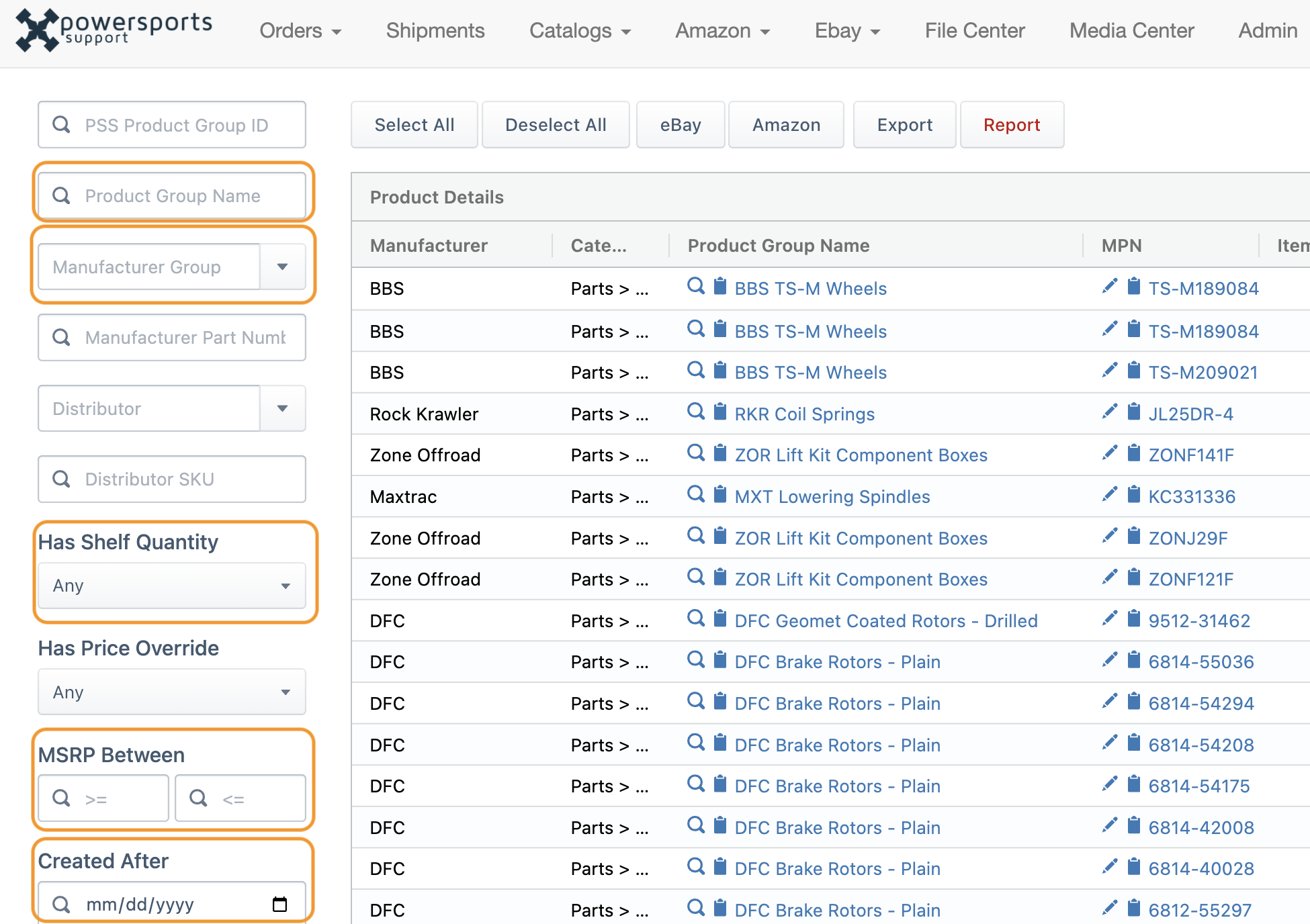
- Highlight the products you want to list, or use select-all to take the whole filtered set.
- Click the eBay button. The Create eBay Listings window opens.
- Select options, then click "Confirm ".
PSS auto-generates the eBay listing title for you based on the product's "Item Name". The item name is a comprehensive title that includes Product Name and Product Attributes such as size, color, and options. Once the listing is created, you will then have the option to modify and optimize your listing titles. See Optimizing Titles & Descriptions.
| Field / Option | What it does |
|---|---|
| Listing Template | Which template these listings use for category, shipping, returns, and everything else |
| Subtitle Hash | If you are in the eBay VIP program, subtitles are free, and you should use them. These subtitles simply add a little extra notation to your listing to make it stand out. "Free Shipping!" or "Authorized Seller" are examples of how you can use this listing enhancement. |
| Skip Existing | Skips any product that already has a PSS eBay listing, so you don't create duplicates |
| Group Variations | Combines sizes and colors of the same product into one listing (see below) |
When your listings go live
- When you create listings, they enter a "Pending Creation" status.
- They go out in the next daily creation feed, once a day.
- eBay processes them. Successful listings go live. Any that fail to go online will show an error status in PSS.
For the exact eBay feed schedule, see How eBay Inventory & Pricing Updates Work.
To fix errors, see Listing Statuses, Errors, and Fixes.
Variation listings
A variation listing puts every size and color of a product in one listing, and buyers pick from dropdowns. Use them for helmets, apparel, gloves, boots, and tires.
- Better for buyers: every option is in one place.
- Better for ranking: sales history and watchers build up on one listing instead of being spread across many.
- Fewer listings to pay for and manage.
To create them, follow the same steps and check Group Variations.
📌 Key Point: Variations are only enabled in certain eBay categories, typically limited to apparel type products. Hard parts CANNOT be listed as variations.
Kit and combo listings
A kit bundles several products into one listing, like a front and rear tire combo or a brake pad and rotor kit. You build kits in your Private catalog:
- In the Private catalog, create a new product group with a clear name, like "Dunlop Q4 Front/Rear Tire Combo."
- Enter the brand and details. Set the MPN to both part numbers combined, like 45036231-45036246.
- Add variations for each combination you offer, plus images.
- List it like any other product.
⚠️ Warning: PSS doesn't check the stock of each part inside a kit. If one part sells out, the kit can still show as available. Watch every component's stock closely. For that reason, we don't recommend kits for most dealers.
Build listings every week
eBay rewards sellers who keep adding new listings. Work brand by brand, one product line at a time, and keep adding. Don't stall out in the 5,000–15,000 listing range.
Next step
Continue to Optimizing Titles & Descriptions.